
Your Mac, your browser, your phone — one DSH
Native macOS and Android clients, Chrome control that reuses your logins, and computer use that never grabs your mouse.
Latest v0.1.68 · 14.0 MB · All platforms & install notes
在 Desktop 中使用 browser-control skill 试一下。
先确认扩展是否连上,再决定用哪条路径。
Check Chrome bridge status
扩展连上了,直接开一个页面跑一遍。
Agent Runtime 适配 pi 需要改哪些?
Locate runtime adapter
适配层只有两处硬编码,换成可配置即可。
把速度埋点上报到 TraceLake。
Add TraceLake reporter
埋点接好了,冷启动与长会话滚动各上报一次。
在 desktop 项目中研究 BYC 的实现方式。
先读入口,再顺着调用链看。
Read BYC entry point
No existing script. So the "random unique app id" pattern is something the agent does ad hoc: modify Info.plist bundle id and install to a temp location. That implies the harness has no built-in way to run more than one instance.
Now screenshot capture. Let me check what CU returns and the Chrome bridge state.
Inspect CU output shape and Chrome status
tools-ptc
The CU screenshot works and the harness normalizes it to a path I can read. The image shows the DSH Mac app with the sidebar. Nice.
CU works. Now I need pixel-perfect files — checking the best capture path.
Check tooling for window screenshot capture
swift is available. Let me write a small Swift helper that lists windows (id, owner pid, name, bounds) using CGWindowListCopyWindowInfo, and prints JSON. Then I can pick the window and capture just that rect.
Build window lister to find window IDs
The window lister works. Note the user's app (pid 67414) window id 49316 at 1280x800, and a test instance pid 91280 (new, launched recently — ids 49784, 49777).
The window lister works. Capturing the Mac app window now.
Error: code run failed (exception): ToolCallError: cannot read "/Users/user/dshapp/dsh-site/static/img/shots/macos-app.png"
"could not create image from window" — Screen Recording permission may be missing for the process running bash, or window id changed. Let me check: the window list still shows the same id.
Check CU attachment resolution
1229x768 JPEG. That's the CU output resolution. Usable but soft for a hero image.
Test screen capture permission
Full-screen capture is blocked (TCC). So `screencapture` is unusable. I'll use CU's screenshots (which work) as the image source, via a Swift window-capture helper.
在设置页中新加一个 tab。
Add settings tab
tab 加好了,沿用系统控件。
会话类搜索,搜索聊天记录。
Index session transcripts
全文索引放在本地,不落盘到远端。
设置页插件检测与安装引导。
Detect installed plugins
检测与引导串起来了,缺插件时给一键安装。
会话列表的搜索有 bug,输入中文会断。
Reproduce CJK search bug
Error: assertion failed: expected 3 results, got 0
按字节切分导致的,改成按字素簇切分。
优化一下这个页面的展示方式。
先看信息层级,再动间距。
层级收成两档,间距统一到 8 的倍数。
Initial greeting to the assistant.
你好,我是 DSH,可以帮你读写文件、操作浏览器、跑命令。
Pro 最新的代码,看一下实现。
Fetch upstream changes
改动集中在会话层。
模型提供商支持 Claude 的接入。
Add provider adapter
接好了,模型列表会自动带上。
Reply with exactly: BYC
BYC
Reply with exactly: SHO
SHO
Reply with exactly: PRO
PRO
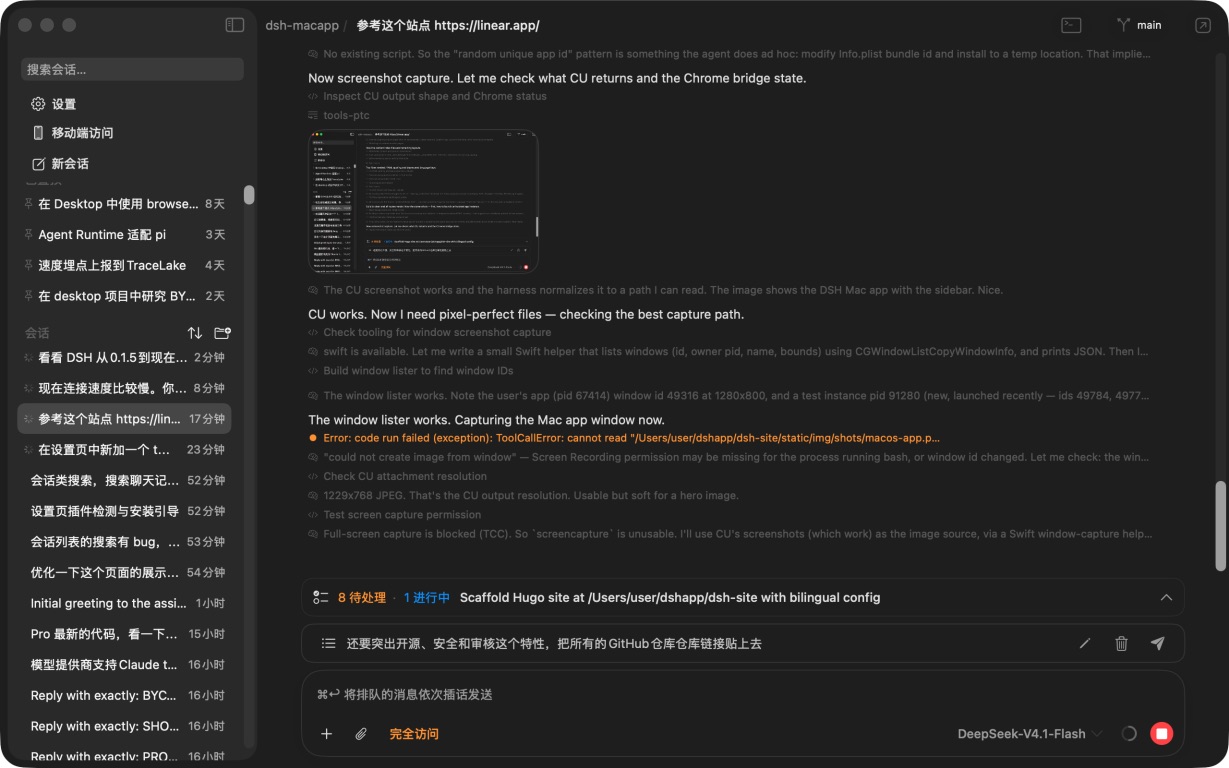
DSH for macOS · native SwiftUI, built for Apple Silicon
Native on every device you use
Four things, one DSH
Every client is native and shares the same sessions, models, and tools.
Native macOS app
A native SwiftUI window: smooth scrolling, instant launch, the full set of Mac shortcuts.
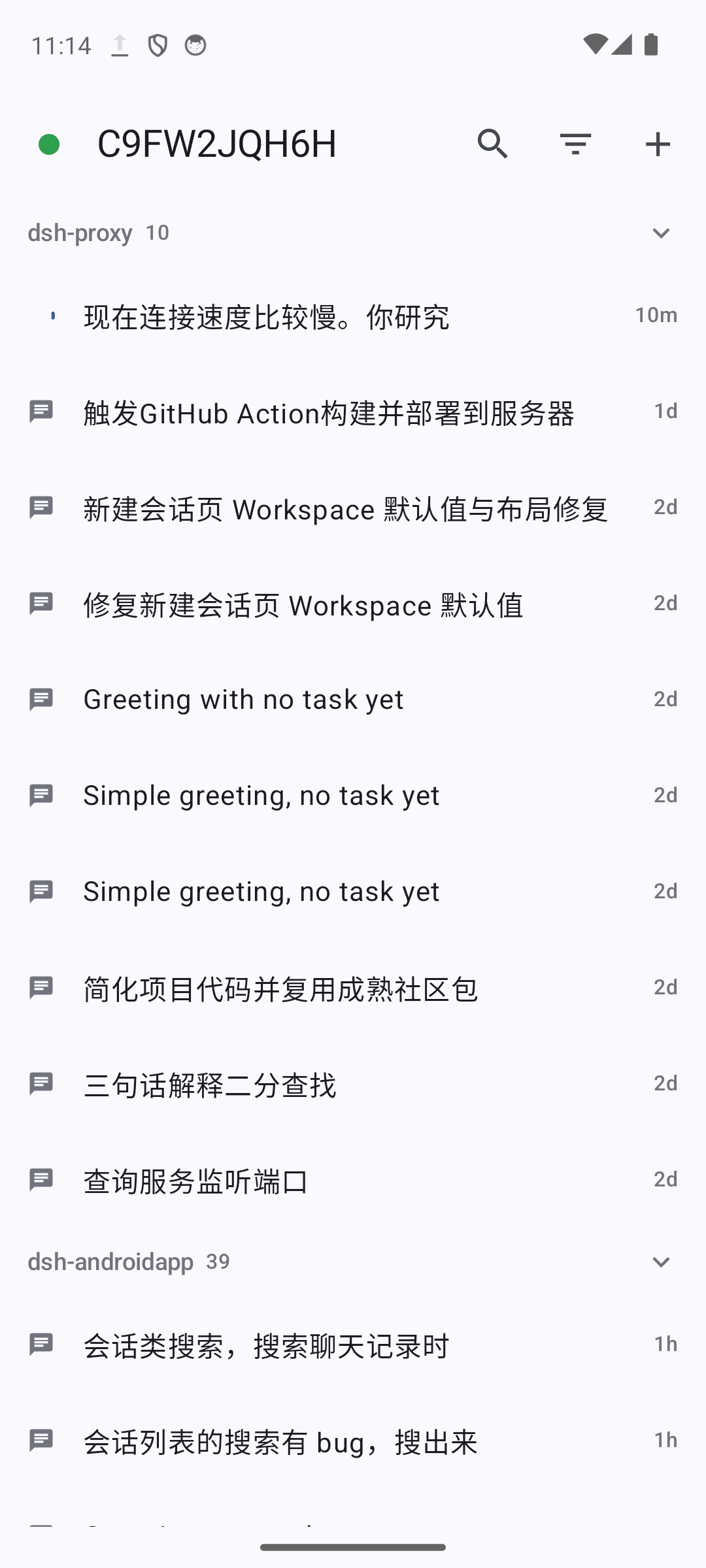
Native Android app
Kotlin and Jetpack Compose, feature-for-feature with the iOS client.
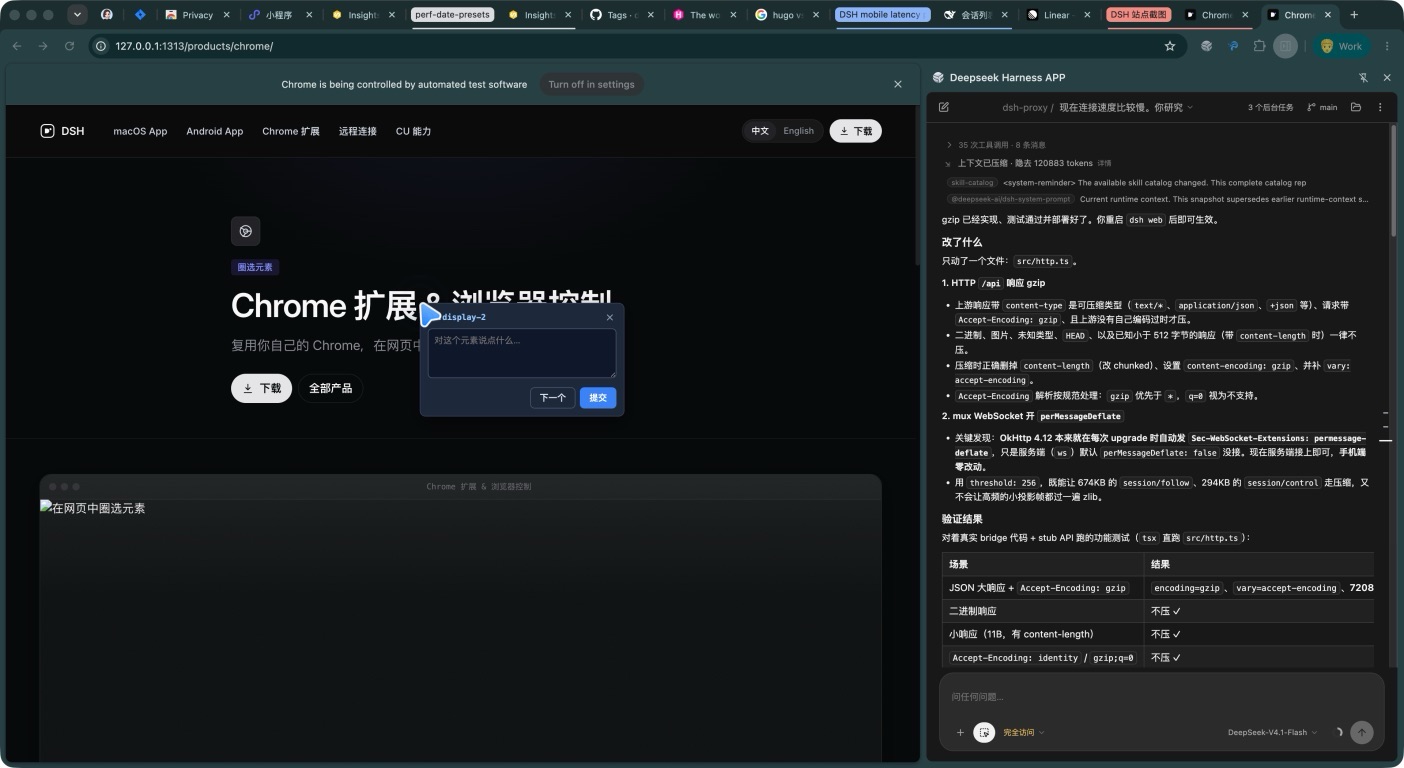
Chrome extension & control
Reuse your own Chrome session and pick elements on the page for the agent.
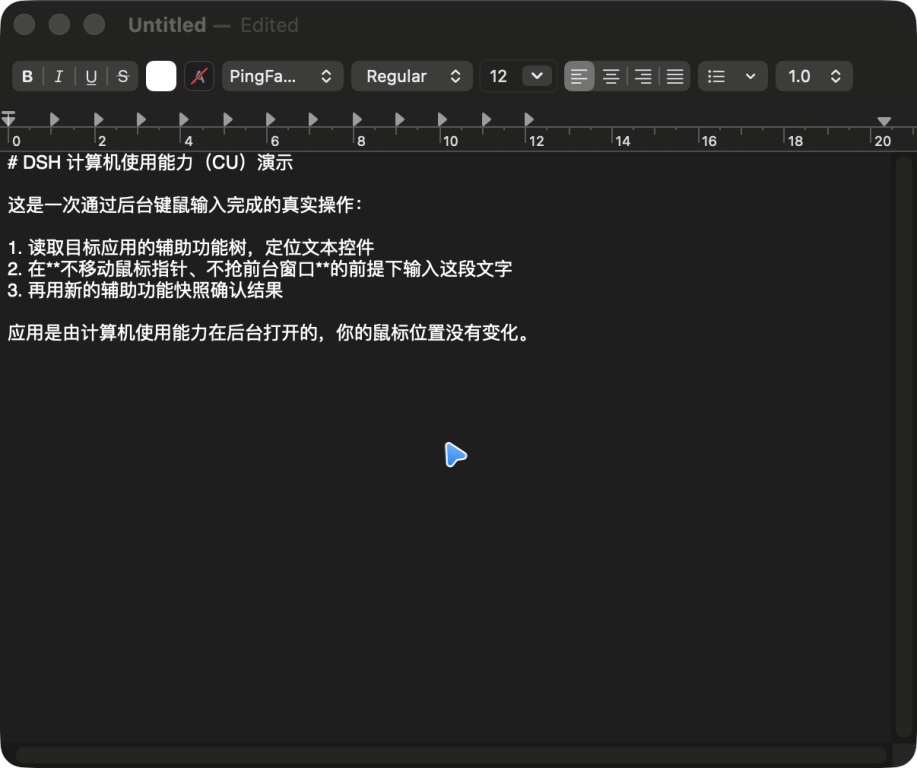
Computer use
Reads the interface and hits the right control — in the background, without seizing your pointer.
Native macOS
A desktop client built for Mac users
Not a wrapped web page. The window, sidebar, menus, and shortcuts all follow macOS conventions, and scrolling feels like the system.
- Smooth: native SwiftUI rendering and scrolling — long trajectories stay at frame rate.
- Fast: a native Apple Silicon build that is ready the moment it launches, and steady even on very long sessions.
- Shortcuts: new session, find, session switching, and a shortcut reference, all where your muscle memory expects them.
- Mac conventions: it follows your system appearance and accessibility settings, including Reduce Motion and Increase Contrast.
Chrome extension & control
Reuse your Chrome and finish the work on the page
The agent drives the Chrome you already use — the same profile, the same logins, the same open tabs. No second sign-in, and no separate clean browser.
- Your logins: admin panels, internal tools, and anything behind a login work immediately.
- Element picker: box a target on the page and hand the agent its selector, text, and structure — far more reliable than describing where it is.
- Real input: clicks and keystrokes are trusted events; the page cannot tell them from yours.
- Cut it off: the “Allow agent control” switch in the extension popup severs control instantly.
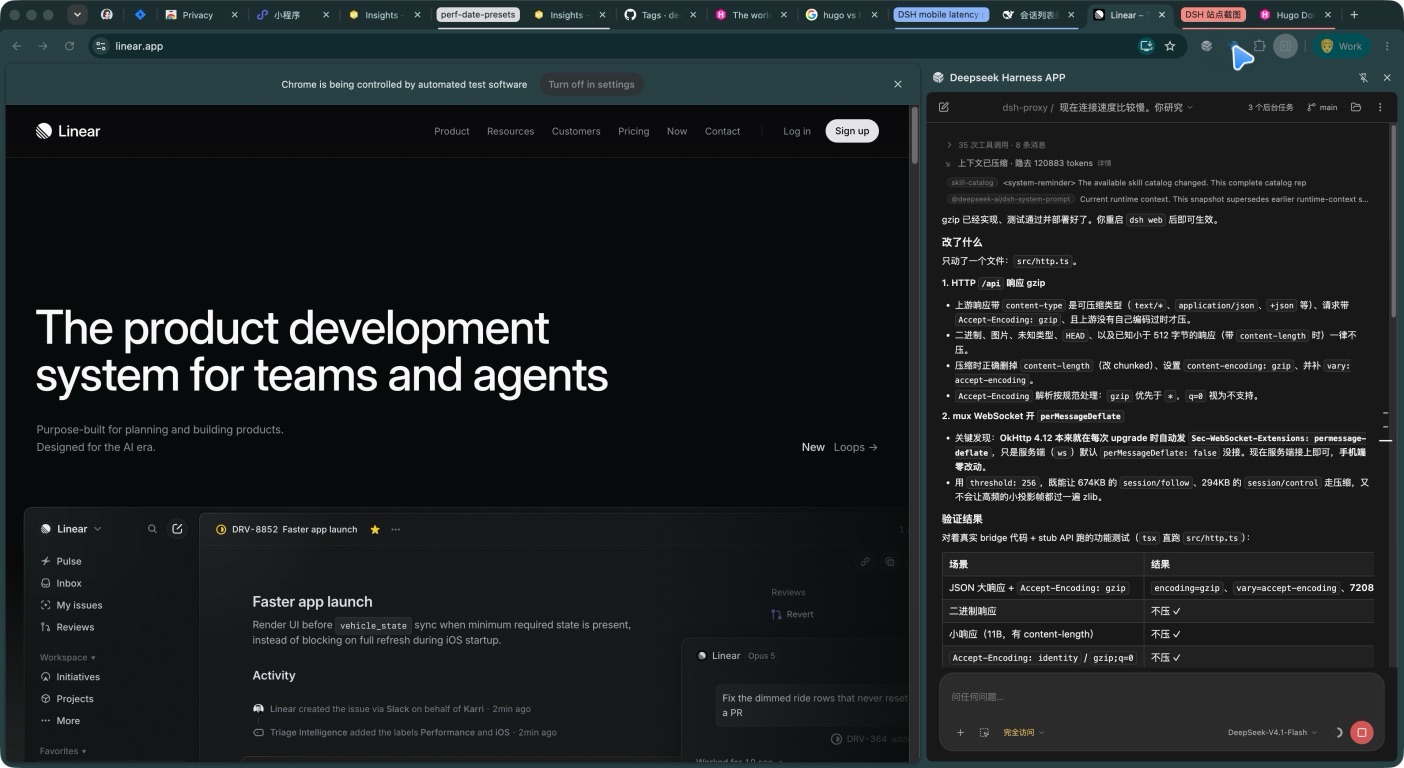
Once the extension connects, the agent gets 27 mcp__chrome__* tools.
DocumentationComputer use
It reads the interface and hits the right control
It understands the current screen through the accessibility tree and screenshots, then acts with background keyboard and mouse input — no window stealing, no touching your pointer.
- Understands: the accessibility tree supplies structure and text; screenshots fill in the visuals.
- Aims well: it targets controls rather than hard-coded coordinates, so moving a window does not break it.
- Stays in the background: input is delivered in the background, so you can keep using the machine.
- Asks first: irreversible actions — sending, deleting, purchasing, publishing — are stated before they happen.
With KimiCU connected, these register as mcp__cu__* tools.
DocumentationPut DSH on your Mac today
Native app, Chrome extension, phone client — install and go.